nizima / Pre-purchase Q&A
What should you check before buying on nizima?
How to review motion, expressions, and usage terms
When you find a model you like, review its motion, expressions, and permitted uses. Use the preview for what it can show, and the product description for the terms it cannot.

What should I try
in the preview?
Check the head angle, eyes and mouth one at a time. Watch how the model looks in motion, beyond what a still product image can show.

Diagram: change the head angle, test blinking and mouth movement, and compare the expressions.
Open the product page's preview
Select “プレビューを表示” (show preview). The available controls depend on the data and settings registered for that work.
Move the face left, right, up and down
On a computer, click and drag over the model. On a phone, touch and move your finger to test gaze following. Watch the eyes and hair as the head turns.
Try blinking and mouth movement
Enable the automatic “目パチ” (blink) and “口パク” (mouth movement) controls. Check how the eyes close and the mouth changes shape. This is separate from testing against your own face or voice.
Use the “?” control or the official nizima preview guide ↗ for detailed instructions.
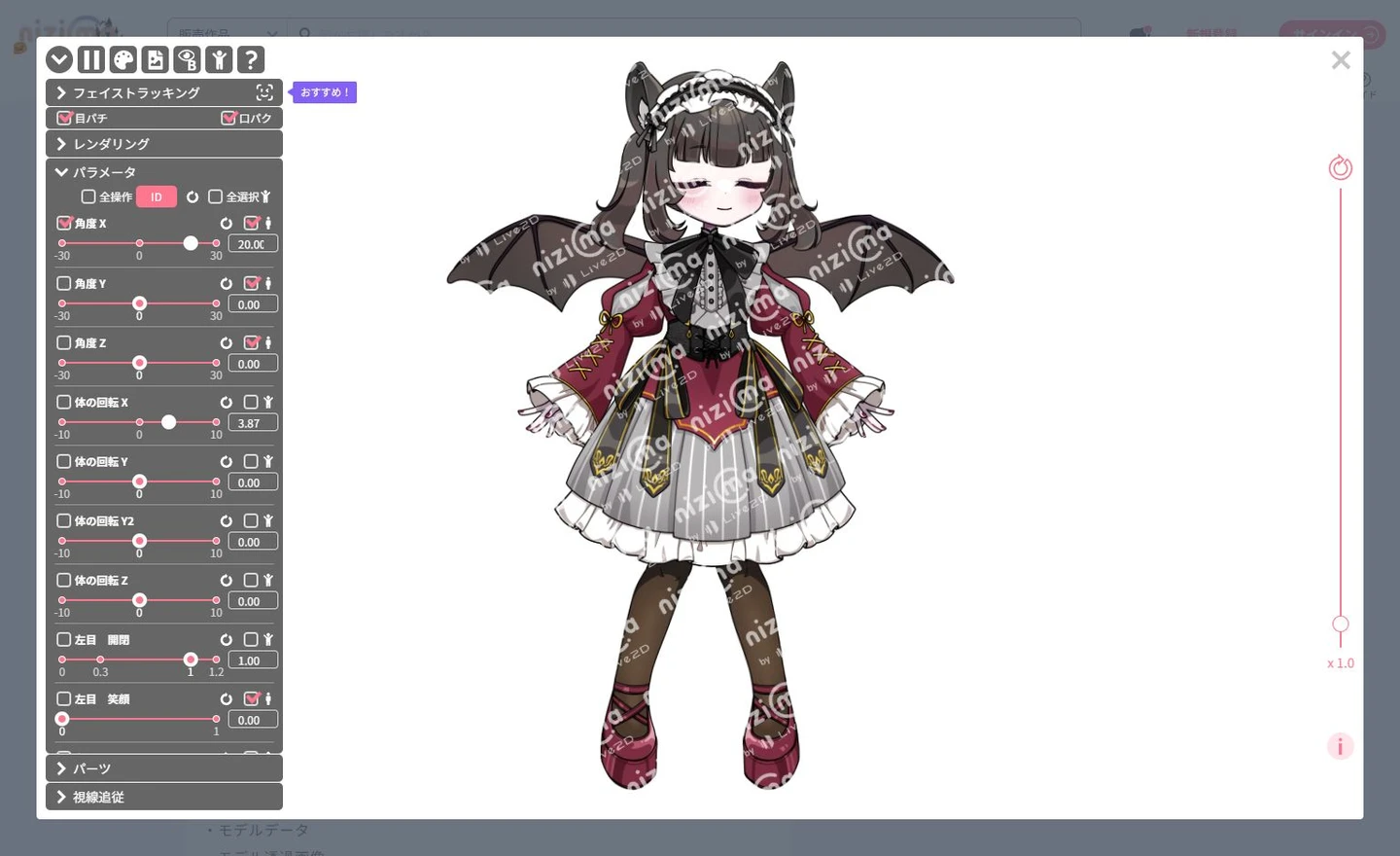
In this product's public preview, opening “パラメータ” (parameters) revealed controls such as “角度 X” (Angle X). Parameters are values that control movement. If the controls feel unfamiliar, start with blinking and mouth movement.
Does it also show expressions,
included extras and usage rights?
Use the preview to check appearance, and the description to check files and permissions. Do not make the purchase decision from the preview alone.
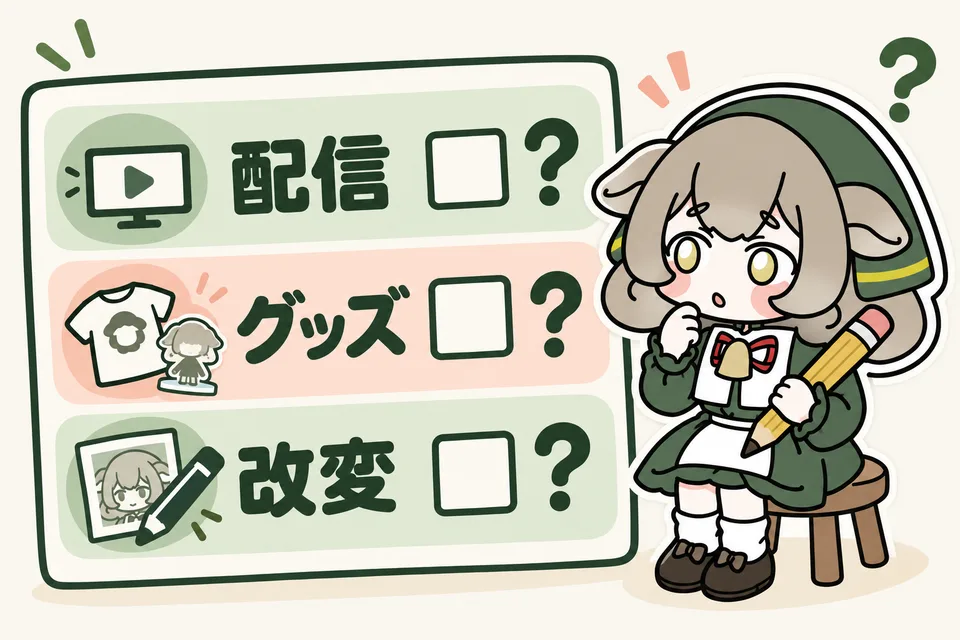
Diagram: streaming, merchandise and edits may have different permissions. Read the written product terms.
What to check on screen
Head direction, eye and mouth movement, and how expressions look. If expression data has been registered, you can switch through the expression list.
The preview may use a lower resolution than the purchased data. Compare fine details with the creator's images and description.
What to check in the description
Finished model or artwork, included images, supported apps and scope of support. Read the conditions for monetization, merchandise and creator credit.
“I could switch to it on screen” and “I have permission to use it freely” are different checks.
What if there is no expression list?
In the Bat × Gothic Girl preview checked for this article, no separate expression list appeared. The product description nevertheless listed five expressions and toggles for the headdress, ears and wings.
Do not assume expressions are absent just because there is no list. Read the description and the creator's samples too. View the product we checked ↗
This particular product permits commercial use, requires consultation for merchandise and requires creator credit. Those conditions do not automatically apply to other models.
If it moves in the preview,
will it work in my stream?
A working web preview does not guarantee operation in your VTube Studio or streaming setup. Compare the supported app with your equipment before buying.
The nizima web preview and the app you use after purchase are different systems. Find the product's tested tracking apps, then use that app's official guidance to check device, OS and camera compatibility.
Can I try it with my camera?
Some works offer web face tracking when enabled and permitted by the creator. A continuous session is limited to three minutes, with equipment and other conditions. Check the official requirements ↗
The feature was visible on the product checked for this article, but camera-connected operation was not tested. A trial does not grant permission to use an unpurchased model in a stream.
Write down any movement you are unsure about
Record what you tried and what happened: for example, “the mouth does not move” or “I cannot find how to switch this expression.”
Check apps, files and permissions in the listing
Confirm that the purchased data supports your setup and that your intended activity is allowed.
Ask the seller before buying
For example: “I plan to use this device and app. In the preview, this happened. Does the model support my setup?”
Depending on how a model was built, its eyes or mouth may not move in the preview. Do not immediately assume it is faulty. Read the listing and ask the seller about that particular work.