VTube Studio / Setup Q&A
How do I import my model into VTube Studio?
Desktop setup and checks when a model does not appear
Where does your downloaded model go? Check the files, add the model to desktop VTube Studio, and distinguish a missing model from one that loads but does not move.

Check what you received first
The desktop version of VTube Studio needs a compatible exported model folder. This is not a way to load a PSD or an unfinished project directly.
Merino’s tip: “Before trying to import it, check that you received the files needed to run the model.”
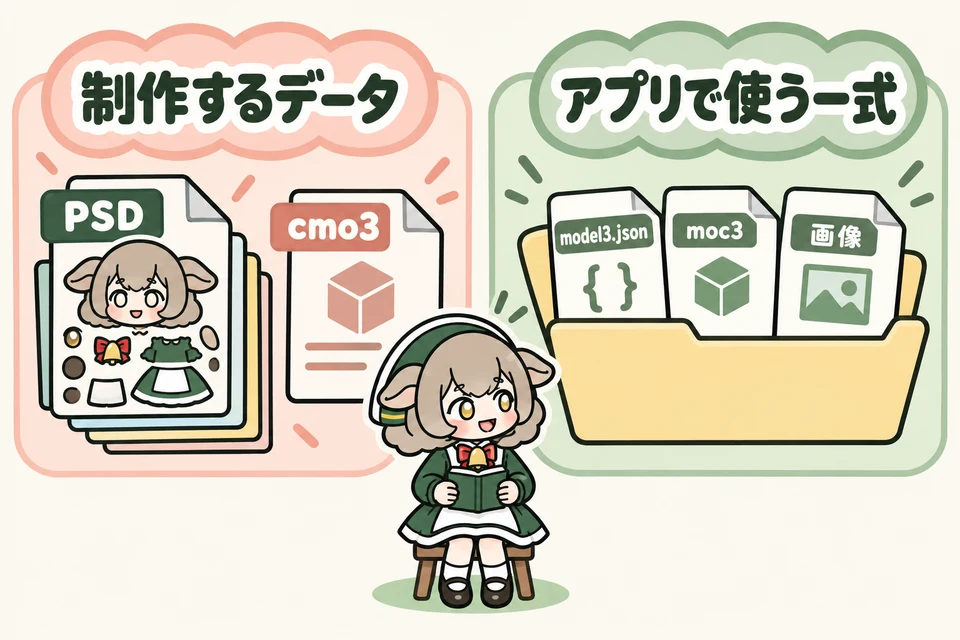
Left: files used to create a model. Right: the set used by an app. Keep the full supplied set, not just the three file types shown.
Artwork and editable projects
A layered PSD is artwork; .cmo3 is a Cubism Editor model project. Renaming an extension does not convert it. Artwork needs rigging, and an editable model needs a compatible runtime export.
The runtime set
.model3.json holds model settings, .moc3 is the runtime model, and PNG textures provide its appearance. Keep supplied physics, expression and other files in their original structure. Follow the creator’s instructions too.
See the official Live2D file reference. A product called a “generic model” does not necessarily include a ready-to-run model.
Copy the whole folder into desktop VTube Studio
Open the model location from the app, add the extracted model folder, then restart VTube Studio.
Extract your download
Unzip it if necessary. Find the instructions and model folder, and keep the original download as a backup.
Open the location from the app
Use the import guidance in model selection to open
Live2DModels. Use the app’s location instead of guessing its installation path.Copy the complete model folder
Place the folder containing
.model3.jsoninside it. Preserve texture subfolders and keep different models separate.Restart and select the model
Close and reopen VTube Studio, then check model selection. Follow any initial setup guidance alongside the creator’s instructions.
Example structure
Live2DModels → MyModel → MyModel.model3.json and its accompanying files. “MyModel” is an example, not a name you must use.
Source: VTube Studio’s official import guide. Our illustrations explain concepts; they are not screenshots of the app.
Which part is not working?
Missing from the list, failing to load, and appearing without movement are different symptoms.
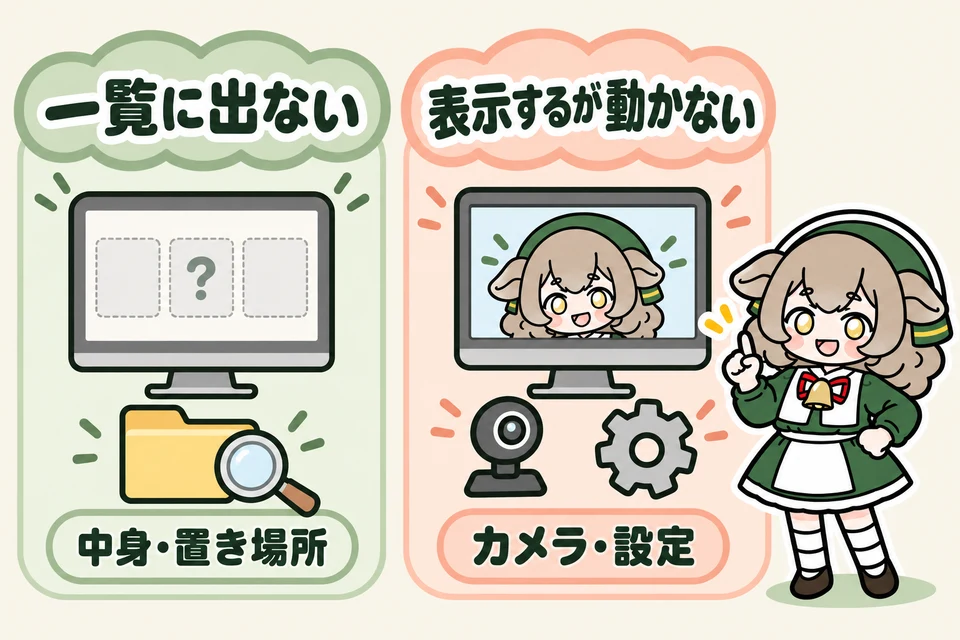
Left: absent from the list—check contents and location. Right: visible but not moving—check the camera and settings.
Missing from the list
Check that the download is extracted, that you used the app’s folder, and that the model folder contains
.model3.json. Distinguish the outer download package from the actual model folder inside it.An error appears when you select it
Save the error and compare the folder with the original download. Settings use relative file paths, so moving or renaming files can break references. Check for missing or renamed files before editing JSON yourself.
If the complete set still fails, ask the seller which VTube Studio version and export format it supports.
Visible, but not following your face
Check the camera, tracking and model configuration. Auto-Setup expects standard parameters; some models need manual configuration. Read the creator’s setup instructions before replacing supplied settings.
Sources: Live2D’s model3.json specification and VTube Studio’s Getting Started guide.
What should you send when asking for help?
Describe the stage where you got stuck, your setup and the exact error.
A useful support note
- Product name and purchase page
- Windows or macOS version, and VTube Studio version
- Missing from the list, load error, or no movement after loading
- The full error and steps you tried
- A folder screenshot showing filenames
Use the seller’s buyer-support channel. Avoid posting the model files publicly, and hide personal information in screenshots.
Before buying, ask: “Does this include a complete model for desktop VTube Studio and import instructions?” If you need a model made from existing artwork, you can discuss production with our studio.
Prepare a commission brief →Displaying a model on a phone and using a phone only for face tracking are separate setups.
Check the smartphone options →